Automatically Deploy a Static Gatsby Site via FTP

Fundamentally, Gatsby is a static site generator ‑ a server‑side build process (in this case: using webpack) which outputs a set of static HTML, CSS, JavaScript, and other assets without any reliance on a server‑side runtime. This means it can be virtually hosted anywhere, even directly onto a CDN.
However, there will often be times when you need a site to sit on more conventional hosting: either because it combines with back‑end systems sitting on the same platform, or when delivered to a client who already has their own hosting in place. Fortunately, it is very easy to introduce automatic deployment to a more traditional hosting platform like this, especially if you are already using a CI pipeline like AWS Amplify or Netlify to automate the rest of the build process.
One brief word of caution before we begin though: unless you have specifically configured your Gatsby site to sit within a folder (more on that in another blog post), you will need to make sure that this deployment goes into the root of your domain and not into a folder within the domain. I like to use subdomains for my client previews for this reason (and to give a more branded feel).
Set up your .env
First things first we want to store your FTP access details. Although you could put these directly into your deploy script (further on down this article), I would strongly recommend against this: if you use GitHub then chances are high that your code is accessible by the general public or may become accessible at some point.
Anything 'secret' should be held in environment variables, not in your source code. Access to your hosting should most definitely be considered confidential, and best kept in your .env file, and that file must be excluded from source control. As a bonus: this also means you can have different deployments for different environments.
So, I create four new variables:
LIVE_DEPLOY = true
FTP_HOST = ftp.yourdomain.com
FTP_USER = deploy@yourdomain.com
FTP_PASSWORD = Y0urP455w0rd123
Strictly, you do not need the first variable (LIVE_DEPLOY), you could instead use one of the methods I've discussed previously to detect a production build, but I prefer to keep this explicit; I often have builds where I want to produce production code, but do not want to actually deploy it as well (e.g., in a client preview environment).
Naturally, if you are using a CI pipeline, you will need to set these same environment variables there too. I tend to keep LIVE_DEPLOY set to false locally and on all build instances except for the one pipeline connected to the 'deploy' branch in my Git repository. That way I can create a new live release by merging code into my deploy branch and pushing it up.

Install ftp-deploy
ftp-deploy is a clever Node.js package which will allow us to automatically deploy our build output via ftp. You can add this to your project simply by running yarn add ftp-deploy dotenv from the project root (unless you're using NPM, in which case it's npm install ftp-deploy dotenv). The deploy script also uses dotenv to read the local .env file, so install that dependency at the same time.
Write Your Deploy Script
Create a new file in the root of your project called deploy.js, we are going to call this as part of our build process. In here we want to use ftp-deploy to take a copy of the Gatsby output folder (/public), and put it up on our remote host via FTP.
Remember that we are writing code for Node.js here, so ‑ depending on which version of Node.js you're using ‑ some of the nicer ES6+ features you've become accustomed to using may not work.
My deploy file looks a little like this ‑ with some comments added to help explain what's going on: If the upload fails, the catch sets a non‑zero process exit code so the CI job can report a failed deployment. Logging the error alone would leave the job looking successful.
// import our environment variables
require('dotenv').config({ path: '.env' });

// require ftp-deploy
var FtpDeploy = require('ftp-deploy');
var ftpDeploy = new FtpDeploy();

// if our LIVE_DEPLOY variable isn't set, or is not set
// to 'true', then we return without going any further
if (process.env.LIVE_DEPLOY !== 'true') {
  console.warn('Deploy env is false, not deploying');
  return;
}

var config = {
  // configure your FTP connection
  // these are the environment variables we set up earlier
  user: process.env.FTP_USER,
  password: process.env.FTP_PASSWORD,
  host: process.env.FTP_HOST,
  port: 21,
  secure: true,  // Require explicit FTPS so credentials and files use TLS.
  localRoot: __dirname + '/public',
  remoteRoot: '/',
  include: ['*', '**/*', '.*'],

  // with Gatsby, these should never make it into your public
  // folder anyway, but it's worth keeping these excludes here
  // to be on the safe-side
  exclude: ['dist/**/*.map', 'node_modules/**', 'node_modules/**/.*'],

  // set to true if you want it to delete all the existing remote
  // files first - I prefer not to
  deleteRemote: false,
  forcePasv: true,
};

// call ftp-deploy with our configuration from above
ftpDeploy
  .deploy(config)
  .then((res) => console.log('FINISHED UPLOADING'))
  .catch((err) => {
    console.error(err);
    process.exitCode = 1;
  });
If there are portions of your site that you are not yet ready to release (for example a blog where you've not yet written enough articles yet), you can use the exclude field to prevent those files being uploaded. With deleteRemote set to false, an excluded file which is already on the server remains there, so remove an earlier release separately:
exclude: [
  'blog',
  'blog/**',
  'blog/**/**',
  'page-data/blog/**',
  'page-data/blog/',
],
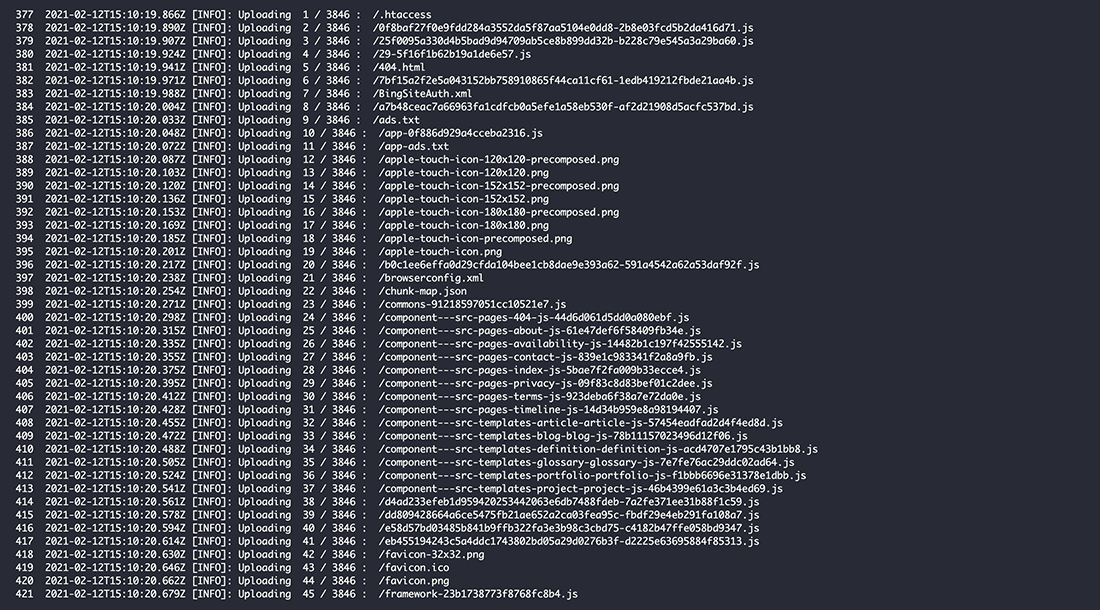
I like to keep an up‑to‑the‑minute update on where the deploy is up to during this, so I also add an additional watcher function which updates as each file is uploaded. This isn't necessary, but if you would like to include it, just paste it into the bottom of deploy.js:
ftpDeploy.on('uploading', function (data) {
  console.log(
    'Uploading ',
    data.transferredFileCount + 1,
    '/',
    data.totalFilesCount,
    ': ',
    data.filename
  );
});
With this you will get a nice line‑by‑line update as the deploy progresses, which will show you what's being uploaded, and where you are in the overall process:
Add Deploy into Your Build Script
The final point in this process is to tie your new deploy script into your build process. This will boil down ‑ in part ‑ to personal predilection. I like to have a deploy script which stands separately from build. In this way, my AWS instance just calls yarn deploy, but your preferences may differ.
For me, my scripts inside package.json look like this:
"scripts": {
  "deploy": "gatsby clean && gatsby build && node prepend && node deploy"
}
All this does is chain four commands together in order:
gatsby clean‑ make sure we have cleared out any cached items we don't need;gatsby build‑ build the Gatsby project;node prepend‑ prepends my error page with a PHP include ‑ I've written about this here;node deploy‑ call our newdeploy.jsfile which in turn will take a copy of the contents of thepublicfolder, and upload it for us.
And it is as simple as that! One last thing to mention: unless you set deleteRemote to true in deploy.js, then over time your remote folder will grow and grow: Gatsby uses a hash in generated file names during each build to cache‑bust, so you may well find that you need to go in and empty this back out again occasionally.
Postscript
June 2026: this article reflects a static Gatsby deployment constraint from a more mixed hosting era. It remains useful when you inherit legacy FTP or conventional hosting, but I would now use it as migration context before deciding whether to stabilise the old build or move the site to a cleaner deployment path.