Using JavaScript to Avoid Orphans

In typography, orphans are often confused with widows, which I cover in Using CSS to Deal with Widows, and occasionally also referred to as 'runts'. However you choose to refer to them, these are those annoying single‑word lines that hang alone at the end of a block of text or paragraph:
I say these are annoying, but really any front‑end developer who has spent a lot of time with hyper‑focused designers knows that the real annoyance comes from watching them laboriously pull their browser window in and out, waiting for that one word to drop onto the next line...
The truth is that whilst in typography and print settings these are a genuine concern that is easily resolved by shortening the previous line, in web development it is extremely difficult to naturally balance text across a fluid screen width and multiple breakpoints without an errant orphan popping up at some point. On some screen width. Somewhere.
There is no simple CSS‑based solution and in the past, I have seen it spiral into a significant distraction away from more key components within the project, and all for very little return for the end‑user. So: to start with, please do consider whether you really do need to tackle this at all. I would argue that the solution to this type of problem is often a compromise somewhere between design, and content; perhaps with a little input from development.
With all that said, there are some occasions where it does make sense to tackle these and pages can look significantly more accomplished with orphans tended‑to. For example in the titles of grid‑based listing pages such as Blogs or Product Listings:
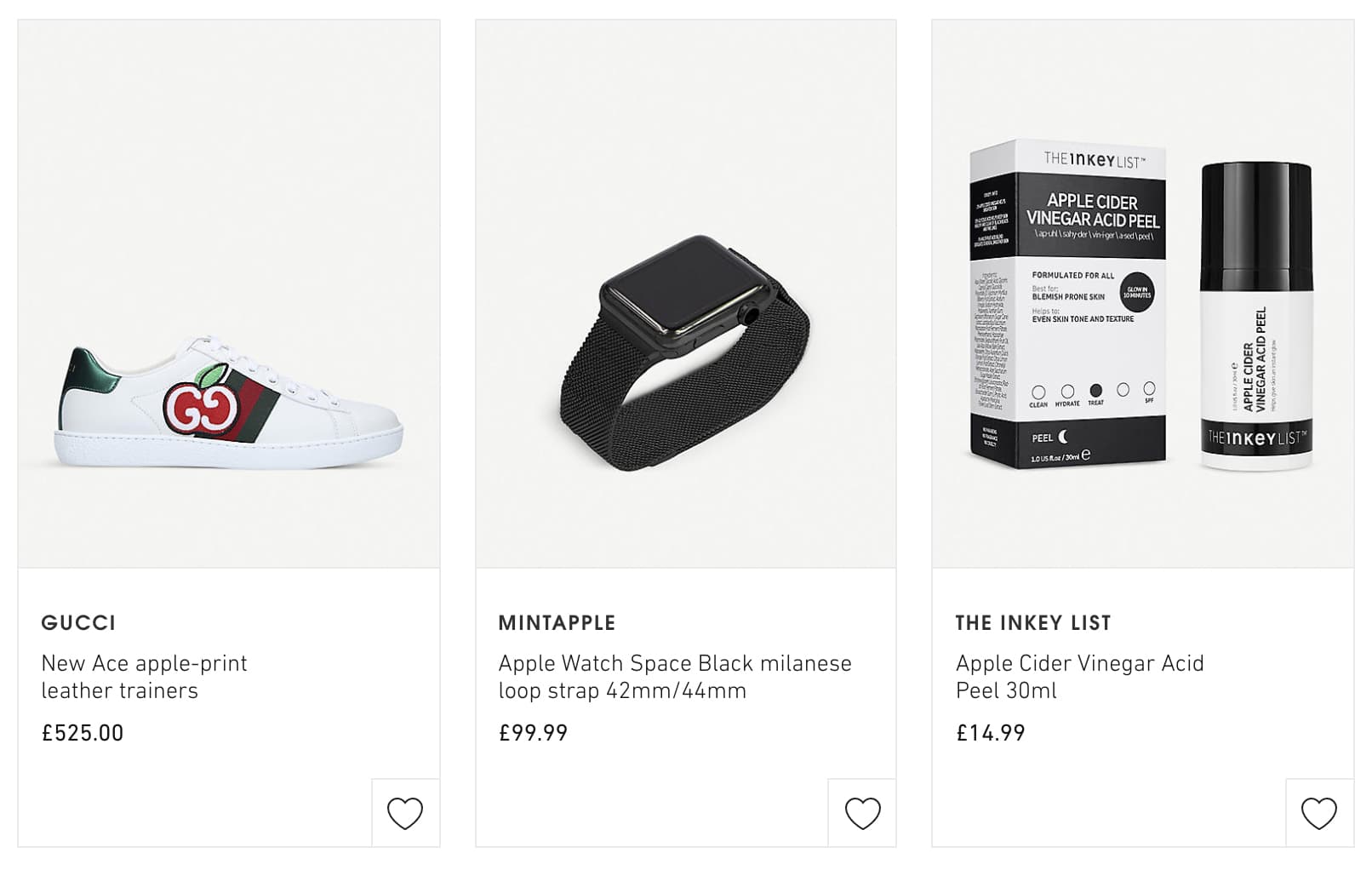
If you are already resigned to using JavaScript for your front end (which you inevitably are if you are using React), and especially if you're also using server‑side rendering, then there is a relatively straightforward solution using JavaScript to join the final two words with a non‑breaking space instead of the old <nobr>.
I've written a little utility function which I can drop in wherever the need arises. You can see it in action in my blog article page titles (above), and on the blog listing pages to help improve the way the text falls on the page:
export default (value) => {
  if (typeof value !== 'string' || value.trim() === '') {
    return value;
  }

  const words = value.trim().split(/\s+/);

  if (words.length < 4) {
    return value;
  }

  const leadingWords = words.slice(0, -2).join(' ');
  const finalWords = words.slice(-2).join('\u00a0');

  // React renders this return value as text rather than parsing it as HTML.
  return `${leadingWords} ${finalWords}`;
};
All this does is take the last two words of a string and join them with a non‑breaking space. React renders the returned string as text, so untrusted characters are not parsed as HTML. The browser will pull the preceding word down with the final word rather than leaving it alone.
A non‑breaking space is ordinary text rather than an HTML injection sink. The old nobr (the 'non‑breaking text element') was never a standard HTML feature. Although it is widely supported across different browsers, it is not used by the corrected example. The two joined words can still overflow a narrow container.
Within the utility, after splitting the text into words and checking there are at least two, another option is to render the final pair in a React <span> with white-space set through a JSX style object. This is a fragment of that approach, rather than a complete replacement function:
const formattedLastWords = (
  <span style={{ whiteSpace: 'nowrap' }}>
    {words[words.length - 2]} {words[words.length - 1]}
  </span>
);
The non‑breaking space and the <span> with white-space: nowrap both keep the final two words together. There are still edge cases where that looks less elegant, and we return to the designer‑developer‑content compromise. For example, on my article listing, a long final word could pull its preceding word onto the next line and leave the title looking unbalanced:

In my case, this was easily resolved by adjusting my utility function to first measure the number of letters in the final word, before deciding whether to inject a non‑breaking span or not. However, this does also add more unnecessary complexity to something that you could probably argue is superfluous in modern, responsive, websites anyway.
Postscript
September 2023: Chrome 117 introduces text-wrap: pretty, which can improve line breaks and reduce short final lines. Try it as a CSS enhancement where supported before adding a text transformation. It does not guarantee that every paragraph will avoid a one‑word final line; check the actual text, width and browser.