Creating Custom Viewport Units Instead of Using vh and vw

In Brief
Prefer svh, lvh, and dvh when your browser support allows them; they now cover most of the mobile viewport problems that prompted this workaround. A JavaScript‑updated CSS custom property can still help with older browsers or application‑specific measurements, but it adds resize work and maintenance. Use it because the product needs that control, not as the default replacement for native viewport units.
I've written about using CSS viewport units (specifically vw and vh) in the past. However, there still remain two big weaknesses when it comes to using these (and vh in particular, as we'll get to in a minute):
- Older browser support can still matter for a particular project, although support for the original
vwandvhunits is now widespread. Check the viewport‑unit support table against the versions your visitors actually use. - On mobile browsers,
100vhcan extend behind expanded browser controls, as Chrome explains in its URL bar resizing notes. Separately,100vwcan include the space occupied by a classic vertical scrollbar and cause horizontal overflow.
I've used a little JavaScript to work around the mobile height problem. It gives us control over the measurement, but we still need to understand what we are measuring.
100vh !== 100% of visible height
This is something you will no doubt come across every time you develop something that takes up the full‑screen. As soon as you load it up on an iPhone (or Android, or any physical mobile device), you'll find that your element is actually overflowing the viewport and falling behind things like the URL bar.
I touched on this briefly in the introduction above, but essentially, how viewport units are calculated can feel counter‑intuitive and not as useful as they might first seem. 1vh is not the same as 1% of the visible screen height (nor is 1vw the same as 1% of the visible screen width).
This is because these devices calculate 100vh as a percentage of the 'largest possible viewport' rather than what's actually visible at that time. It means that things like the URL bar that appears at the bottom of Safari and Chrome, overlap your 100vh height element, and your 100vw width content will fall behind browser elements like the scrollbars.
The large viewport size stays stable as browser controls expand and retract. Keyboards are a separate concern: some browsers resize only the visual viewport when a keyboard opens, leaving the layout viewport unchanged.
Here's an example from a project I've been working on:
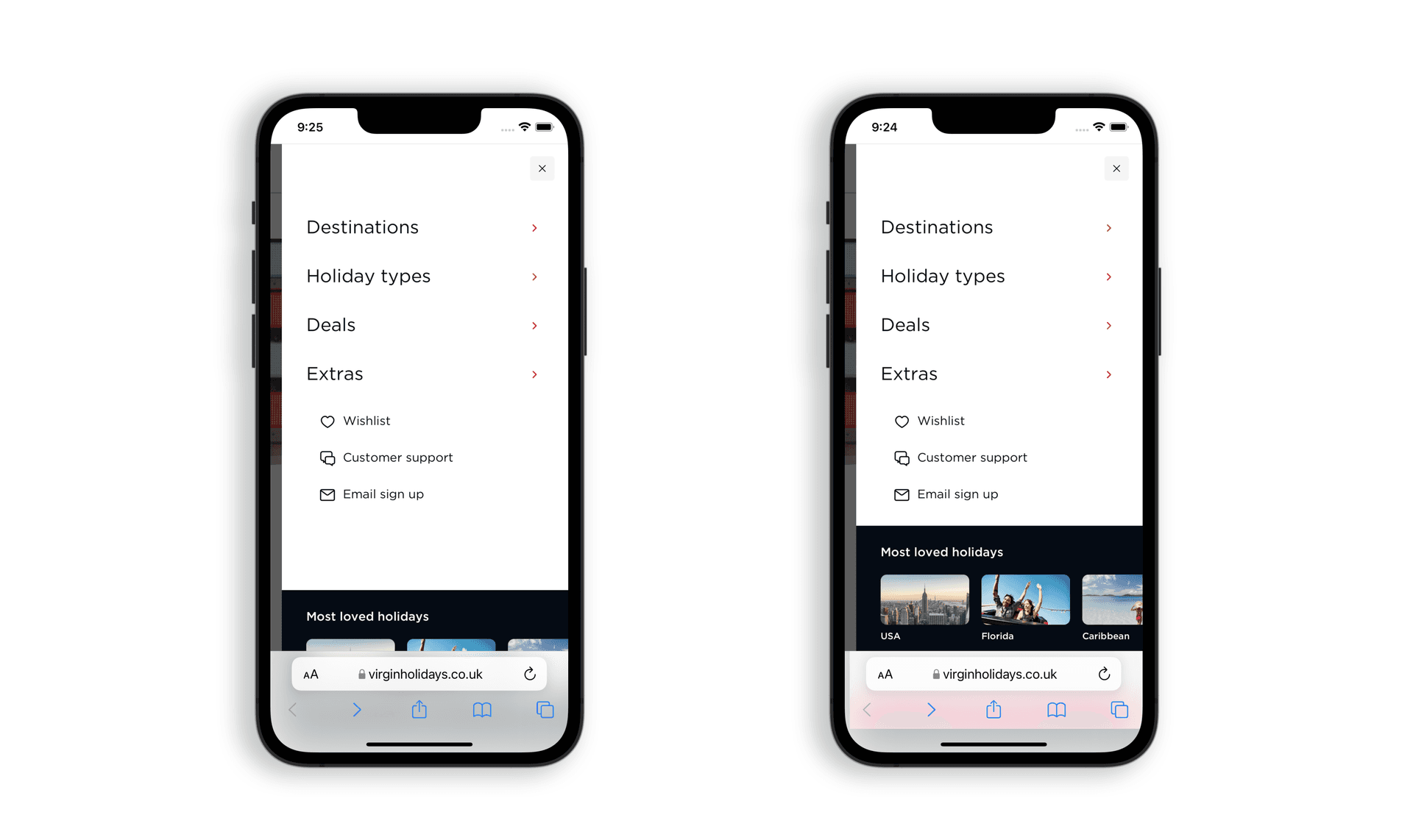
This is the new fly‑out navigation for Virgin Atlantic Holidays, where the main panel is expected to be the full height of the screen, with a set of image‑based location panels positioned off the bottom edge.
On the left, that navigation panel is set to height: 100vh and ‑ as you can see ‑ those bottom image panels are sitting down behind the URL bar. On the right is how it is intended to look and how it does look with a little additional JavaScript help.
The Solution: A Custom CSS Property and a Little JavaScript
Instead of using viewport units directly, we can store one hundredth of the measured width and height in custom CSS properties, then multiply them with calc(). Here, the measurement comes from window.innerWidth and window.innerHeight, which describe the layout viewport, including any scrollbars. They do not always describe the unobscured part of the screen.
This worked for the navigation shown above. For a keyboard‑aware overlay, though, investigate window.visualViewport and its resize event, then test the actual mobile browsers you support. Swapping in a visual measurement also means deciding how the overlay should behave during zooming.
Implementation: JavaScript
Every time I've implemented this, it's been in React, but there's no reason vanilla JavaScript couldn't be used to the same effect:
Create a Resize Handler:
respond toresizeevents onwindowand measure again. I useuseCallbackto keep the handler reference stable between renders. Not every browser‑control change produces a window resize, so this listener alone cannot promise to follow every visible‑height change.Debounce it:
In the interest of improving performance further, I also debounce the handler and avoid excessive recalculations during rapid viewport changes (like resizing the browser window). This is optional because the downside of debouncing like this is that there will be a delay between the resize event itself and the dimensions updating.Create the Custom Property/Properties:
The resize handler function measures the current viewport, divides it by100(to get1%), and then assigns it as a custom CSS property to thehtmlelement.Use it in the CSS
Here's what my code looks like:
const handleResize = useCallback(
  debounce(() => {
    if (typeof document !== 'undefined' && typeof window !== 'undefined') {
      const documentEl = document.documentElement;
      const { innerHeight, innerWidth } = window;

      documentEl.style.setProperty('--calculated-vh', `${innerHeight / 100}px`);
      documentEl.style.setProperty('--calculated-vw', `${innerWidth / 100}px`);
    }
  }, 250),
  []
);
I've included both vw and vh calculations here, but it's fair to say that for the most part, most of my issues relate to heights rather than widths, so you may not find it necessary to include both.
Custom properties are part of the CSSOM. Use style.setProperty() to write them and style.getPropertyValue() to read their inline values. They do not have the ordinary named IDL properties that let us write something like style.height.
The effect calls the debounced handler on mount, registers the listener, and removes it during cleanup. Its dependency is handleResize; cleanup also cancels any pending call. Because the initial call is debounced too, the CSS fallback needs to work before the first measurement arrives:
useEffect(() => {
  if (typeof window !== 'undefined') {
    handleResize();

    window.addEventListener('resize', handleResize);
    return () => {
      window.removeEventListener('resize', handleResize);
      handleResize.cancel();
    };
  }
}, [handleResize]);
A window resize lets this example update its measurements. It does not cover a keyboard that shrinks only the visual viewport, so do not treat it as a universal keyboard workaround. For the browser‑control case, see the iOS resize events I described separately.
Using This in Your CSS
Using these custom properties in your CSS is as simple as creating a calc to multiply the custom value by the number of them you want to use. For example:
/* the calculated equivalent of 50vh: */
calc(var(--calculated-vh, 1vh) * 50);

/* the calculated equivalent of 100vh: */
calc(var(--calculated-vh, 1vh) * 100);

/* the calculated equivalent of 10vw: */
calc(var(--calculated-vw, 1vw) * 10);
So, if you wanted an element that was 100% the width of the viewport and 25% of the height, it would look something like this:
.element{
  width: calc(var(--calculated-vw, 1vw) * 100);
  height: calc(var(--calculated-vh, 1vh) * 25)
}
Using Viewport Units as Fallbacks
As part of making sure this is as robust as possible, it is important that we consider what happens if the visitor either:
- Has a browser that doesn't support
calc; - Doesn't have the custom properties in their DOM.
There are any number of reasons why either might occur: a third‑party script might scrub the html style object for example, or your resize handler might simply not mount.
Either way, the layout needs a usable size before JavaScript sets the custom properties, and if it never does.
It may seem counterintuitive considering everything we've discussed until now, but the answer is simple: use vw and vh as fallback, like this:
.element {
  width: 50vw;
  /* Unsupported syntax leaves 50vw in place; a missing variable uses 1vw. */
  width: calc(var(--calculated-vw, 1vw) * 50);

  height: 25vh;
  /* The variable fallback also works before JavaScript sets the measurement. */
  height: calc(var(--calculated-vh, 1vh) * 25);
}
There are two fallbacks here. A browser that cannot parse the later declaration keeps the earlier plain viewport value. In a supporting browser, the second argument to var() supplies 1vw or 1vh when the custom property is missing. A missing variable without that fallback makes the declaration invalid at computed‑value time; the browser does not go back and try the earlier declaration. A defined but unsuitable value, such as a colour where a length is needed, can still invalidate it.
This also has the added benefit of capturing any rogue visitors who have JavaScript disabled ‑ although, from my more recent experience, the only time anybody visits one of my projects without JavaScript is when I or my QA team are testing to make sure it works without JavaScript...!
Benefits and Drawbacks
This has become a bit of a meandering article now, and many of these points have already been touched‑upon above (some of them more than once), but nevertheless it's worth quickly rounding up the benefits and disadvantages of using this approach:
Benefits
Dynamic Adjustment:
The custom properties update when the measured layout viewport changes and our listener runs. Other measurements or events can be used when the application needs them.Explicit Measurements:
We can choose the dimensions used by the layout, but that does not make mobile viewport behaviour identical across browsers. Test the states that matter for the component.Integration with JavaScript:
We can use this for further JavaScript‑based logic in our application since we are already listening for theresizeevent.
Drawbacks
Performance:
As I've mentioned above, I used debounce to avoid running those big full‑document recalculations on every resize event. This helps to reduce performance issues that might otherwise be introduced by the feature, but does also mean that our custom properties don't update instantaneously. What you get is a payoff between potential performance impacts from the calculations, and not having a snappy response to user resize events.JavaScript Dependency:
Again, I mentioned this just a couple of paragraphs above, but you need to be aware of potential issues that might occur if your JavaScript doesn't work for any reason. Use fallbacks in your CSS, otherwise your layouts may collapse altogether.
Wrapping Up
The navigation example shows why this workaround can be useful: I needed the bottom panels to stay in view. Keep the measurement, events, and CSS fallback together when using it elsewhere, and test keyboard and browser‑control changes separately. A custom property gives us control, not a guarantee that every viewport quirk has disappeared.
Postscript
August 2026: Native svh, lvh, and dvh (with corresponding width variants) now cover much of this use case. The custom‑property technique above remains as a historical workaround and can still help when older browser support or application‑specific measurements require it.