Use Chrome's Developer Tools to Track Element Focus

When traversing a web page via the keyboard (i.e., when your tester repeatedly hits the tab key), finding and then tracking down 'phantom' elements, where the focus disappears and then reappears again, can be very time‑consuming or frustrating.
This is a problem I've come across frequently in the past where larger platforms are made up of multiple components and multiple development teams. It can be particularly problematic when it comes to accessibility: if you rely on a screen reader and the keyboard to access a page, then having random (often silent) elements interject themselves is annoying at best.
Create a Live Expression
Fortunately, in Chrome's Web Developer Tools, this is an easy thing to track down.
- Open Web Developer Tools;
- Go to the Console;
- Click on the
Create Live Expressionbutton (it's the little eye symbol next toFilter); - In the Expression field that appears, type in
document.activeElement; - Click away from the field to set the Expression.
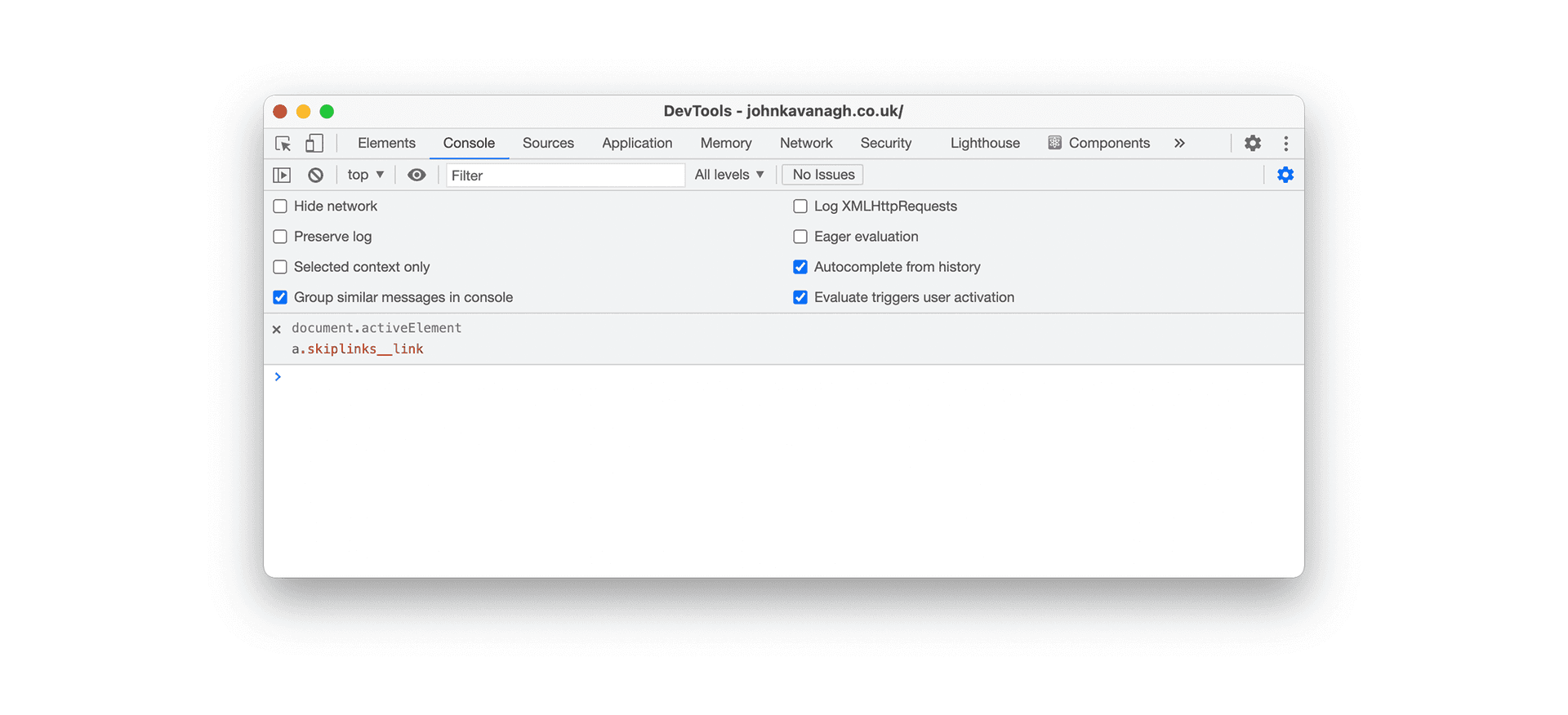
Now, as you interact with the page the value will update to show which element is focused at that time. Hit the tab key to your heart's content and watch as each element that takes your user's focus is flashed up.
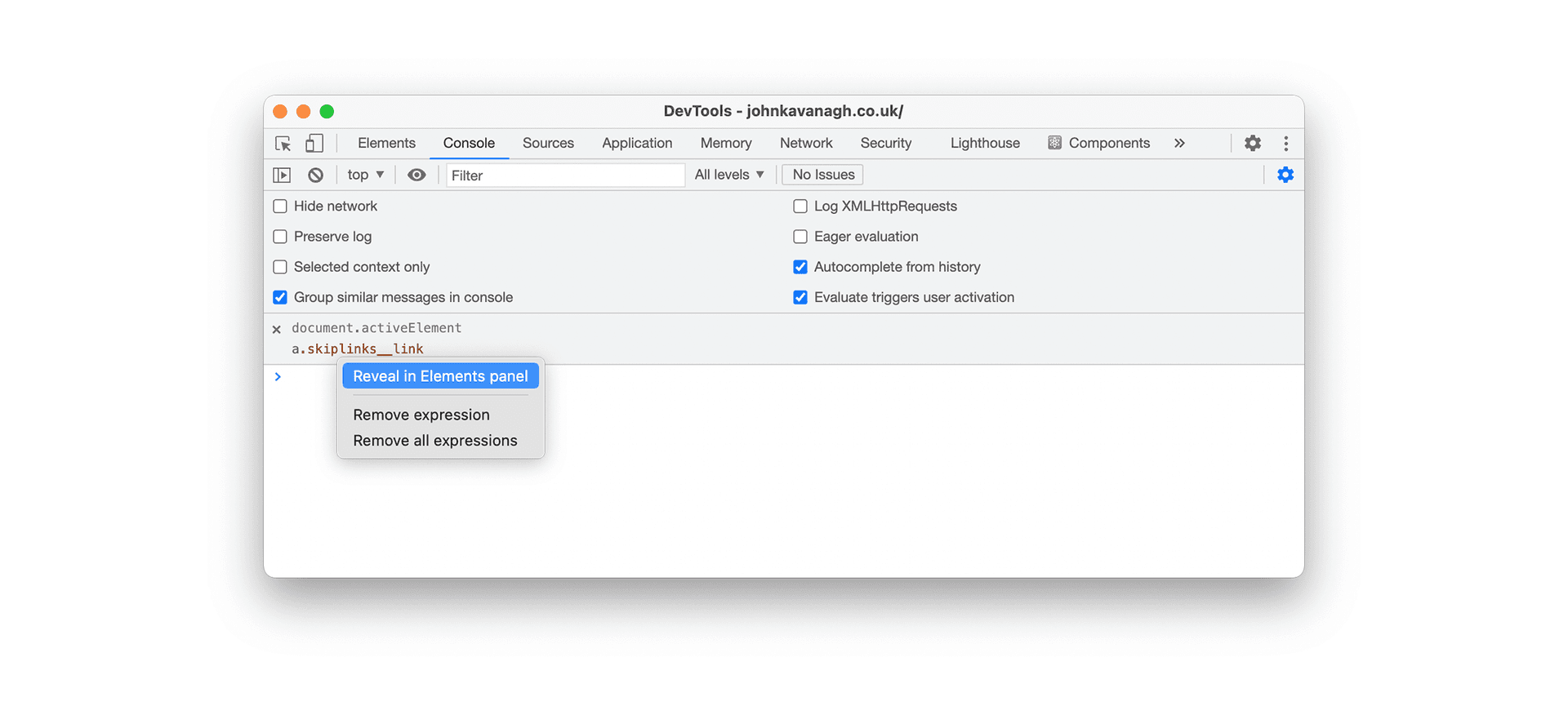
If you right‑click on this, you can also view the element that has taken focus in the DOM tree within the Elements panel by selecting Reveal in Elements panel:
You can now track down each unexpected focus stop. First fix the DOM and source order, use the appropriate native control, and make its focus state visible. Use tabindex="0" only when a custom element genuinely belongs in the natural sequence, and tabindex="-1" only when it must be focusable programmatically. Avoid positive values, which override source order, and remove an element from the sequence only when it is not an interactive stop.