Enhancing Web Typography with text-wrap: balance

At the end of last month, I wrote about text-wrap: pretty and how this recent addition to CSS can help with short final lines in paragraphs. It gives the browser another way to improve line breaks, though it doesn't guarantee that every awkward break will disappear.
Here, I'd like to discuss the close relation; text-wrap: balance. Although similar (in that it's a relatively new addition to the CSS Text Module draft), using balance instead of pretty achieves quite a different visual effect by balancing lines of text against one another, which is especially useful for shorter text elements like page titles and headlines.
It's a different approach to text-wrap: pretty, and achieves a different effect, but text-wrap: balance is equally important when it comes to displaying visually appealing and harmoniously‑balanced text in our websites.
Understanding text-wrap: balance
balance is a value of the text-wrap property. It asks the browser to make line lengths more even, which is particularly useful for headings and other short blocks. It works within the available width and the browser's balancing limits; it doesn't promise perfectly equal lines.
In action, it looks like this:
For the sake of a direct comparison, here is the same block of text, but with text-wrap: pretty toggled on and off:
Both balance and pretty are part of the evolving CSS Text Module. In October 2023, support is still limited, so treat them as progressive enhancements. Chrome's initial balancing implementation only handles blocks of up to six lines; longer text may keep its normal wrapping.
Practical Applications of text-wrap: balance
In practical terms, text-wrap: balance can dramatically improve the appearance of headlines and titles. I use it extensively across the titles you see here on my personal website in fact!
To offer another example, consider the product listing page on one of the big e‑commerce websites I once worked on. Here is a row of products, with their titles rendered normally:
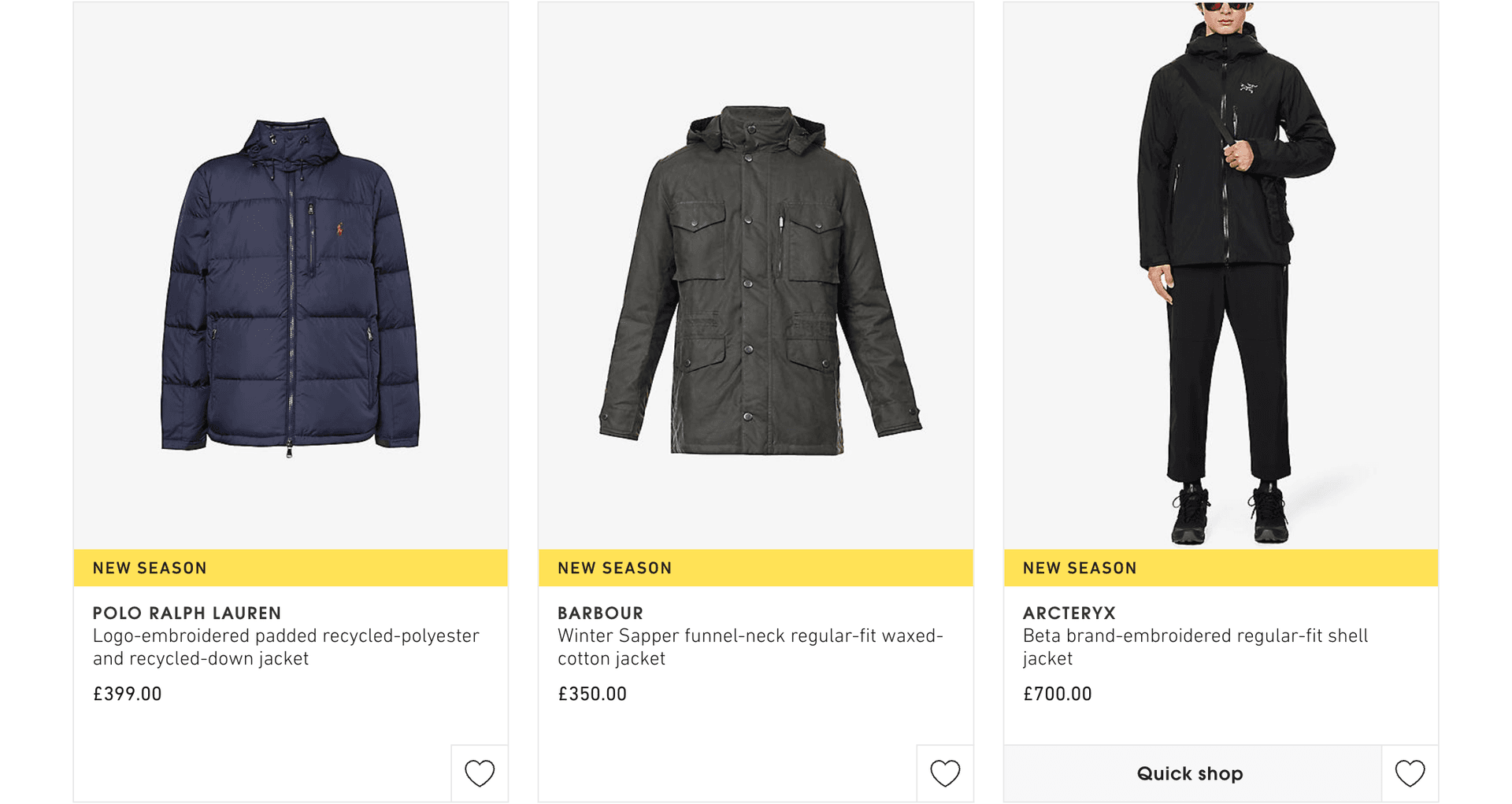
You'll hopefully notice that some of the titles break unevenly across lines, and leave a visually jarring short line at the end. You also get these really long lines of text, sometimes followed by a single word, which makes it difficult for the user to read.
Now, here is the exact same screenshot, but this time I've added text-wrap: balance to the titles:
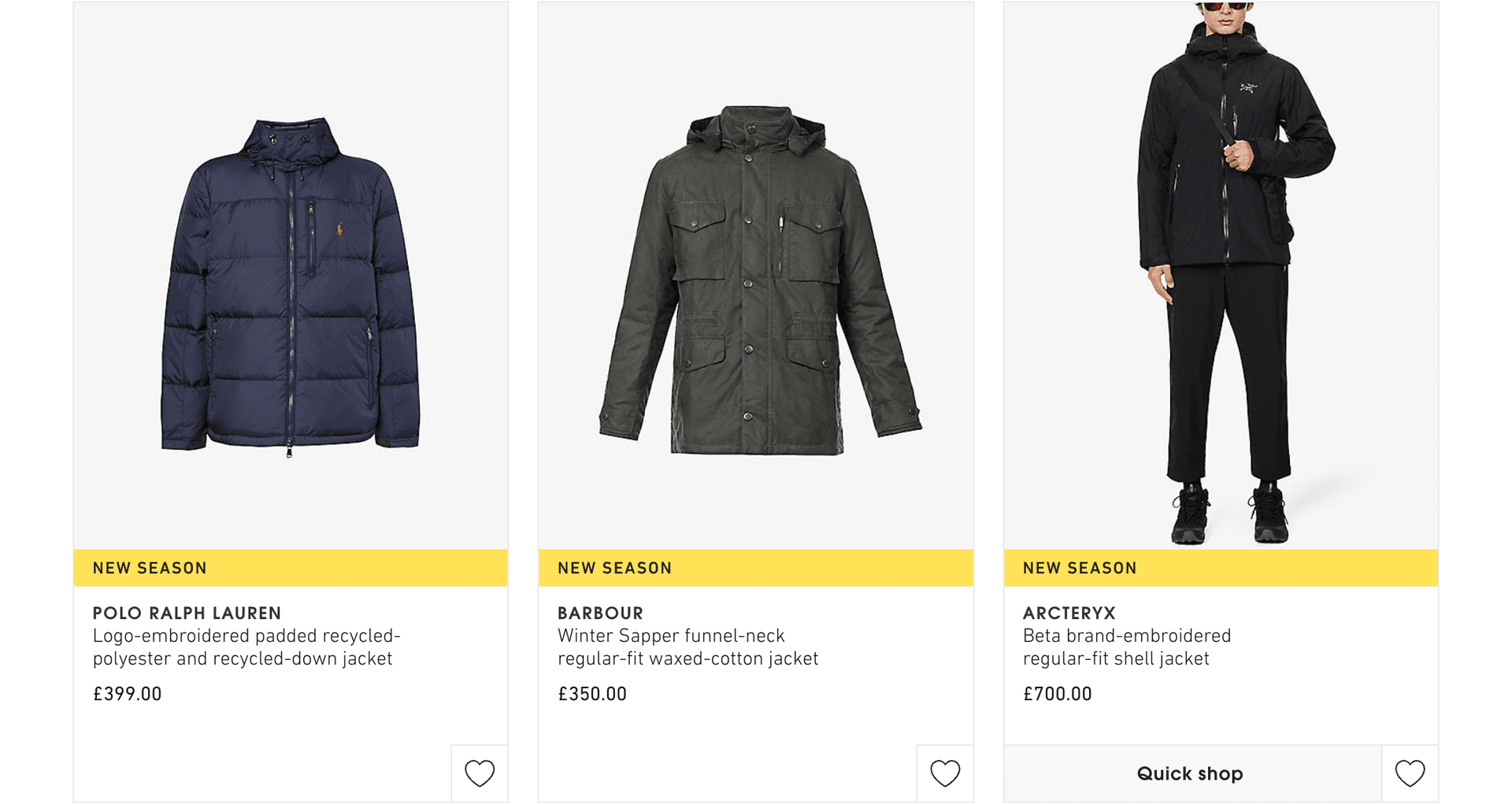
As you can see, the product items now look much cleaner; the titles do not run extremely long but instead, each line in the title is balanced against the other. Although this makes it more visually appealing, what it also does ‑ and perhaps more importantly ‑ it improves the user's experience of the site, making it easier to scan the product results and find the one they want to buy.
This is helpful in responsive layouts, where a title can develop an awkward break as its available width changes. I still check the actual titles at different widths: text-wrap: balance helps the browser choose breaks, but doesn't guarantee a tidy result for every screen size or piece of text.
text-wrap: balance vs. text-wrap: pretty
Although similar, text-wrap: pretty and text-wrap: balance address different typographic challenges in web design.
text-wrap: pretty gives the browser scope to improve paragraph wrapping, including avoiding a very short final line where its algorithm can. text-wrap: balance instead aims for more even line lengths in short blocks such as headlines. Neither is a promise that every orphan or uneven line will be removed.
Whilst pretty enhances readability for larger pieces of text (like paragraphs), balance improves the visual harmony of shorter text elements.
Wrapping Up
There isn't much more to say here aside from to share a little personal advice: I like to use pretty in my base stylesheet and apply it to every p, li, and blockquote. I also like to apply text-wrap: balance to all my titles. Something like this:
p, li,
blockquote {
  text-wrap: pretty;
}

h1, h2, h3, h4, h5, h6 {
  text-wrap: balance;
}
With these few lines of CSS, you can very easily improve the way that text renders across your website or application. Assuming ‑ of course ‑ that your user's browsers support it at this early stage...